
Changes & diffs
The Changes pane shows what changed, as diffs, file by file.
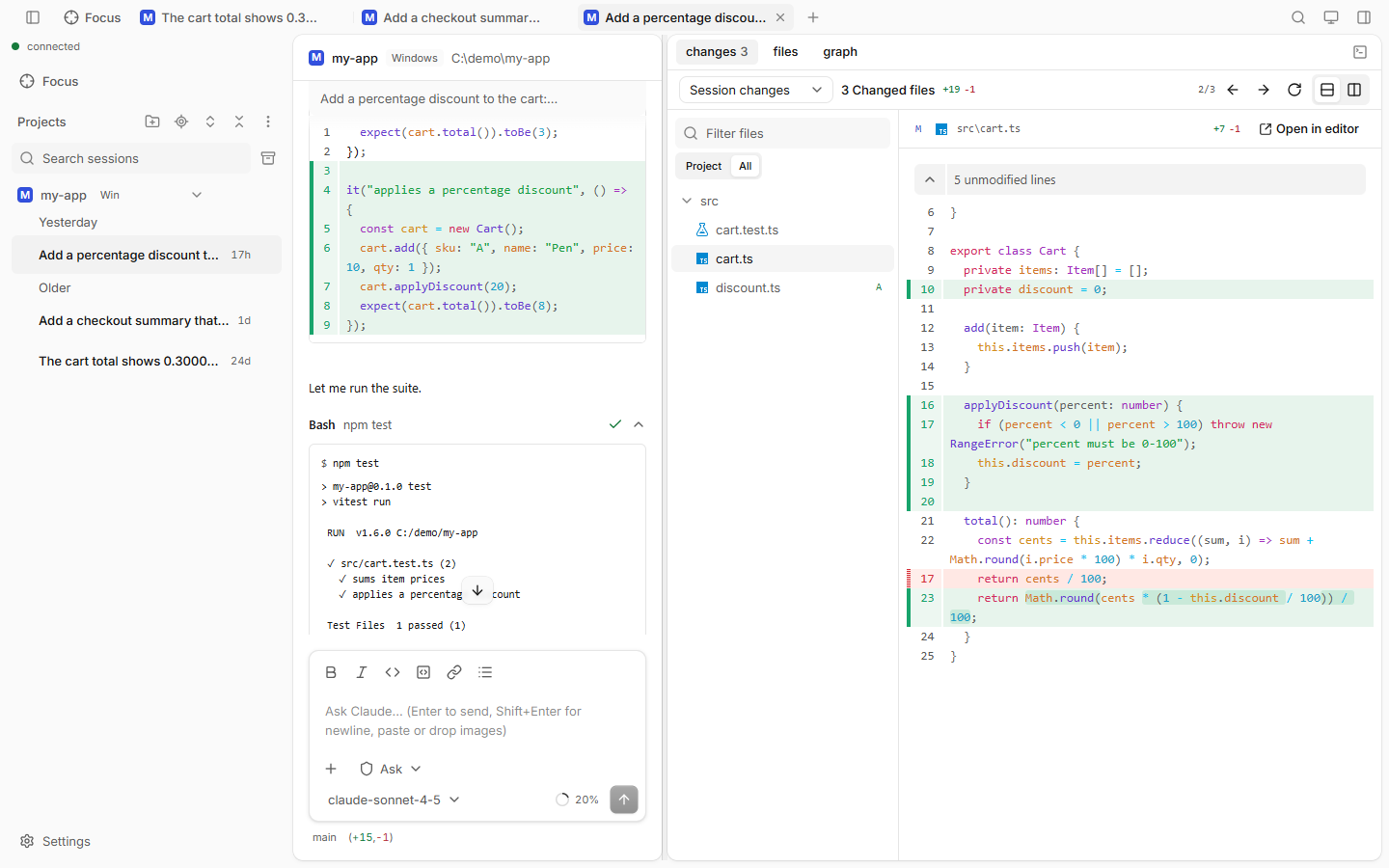
How to use
Open the side panel and pick changes (or press Ctrl+Shift+G).
Choose a diff mode:
Mode Shows Session changes What Claude changed in this session Uncommitted Your uncommitted git changes Against branch Everything that differs from a branch you pick Click a file in the list, or use ← / → for the previous or next file.
Repositories
A project folder can hold several repositories: nested ones, or submodules. In the git modes, the repository selector in the toolbar shows the selected one (name and branch). It opens a tree: the project's own repository, its submodules, then the nested repositories. Pick one to see its changes. The choice is kept per project in this browser and is shared with the Git graph.
- A project folder that is not a repository itself but holds some still gets the git modes.
- A submodule with other commits than recorded shows a submodule badge instead of a text diff. One with uncommitted changes shows "modified content (N files)". An embedded repository folder shows a repository row. Show changes in path on these rows switches the selector.
- Which repositories are found follows the settings in Settings › Git.
Good to know
- Uncommitted and Against branch need a git repository.
- Files shown: Project / All: only the session's folder, or the whole repository.
- Switch between Split diff and Unified diff. Narrow screens always use unified.
- Drag the edge of the file list to resize it, or focus it and press ← / →. Double click the edge to restore the width. It is kept per browser.
- Filter files narrows the list by name.
- A folder with a single child folder shows as one row (
src/components). View as list shows the files flat, each by its path; View as tree goes back. The choice is kept per browser. - Pick the mode the pane opens in at Settings › Layout › Changes.
- The status bar under the prompt box shows the branch and a
+added −removedcount.