
Sessions & tabs
A session is one conversation with Claude in one folder. Sessions run in the daemon, so they keep going when you close the browser.
How to start a session
- Click New session (or press Ctrl+Shift+S).
- Pick the project, model, mode and effort in the prompt box.
- Type your prompt and press Enter.
To start in a specific project, use the + on that project's row in the sidebar.
On a wide screen (1024px and up), the New session tab already shows the project's side panel and bottom panel, so nothing moves when you send the first message. Files, Graph and Terminal work as in a session, and Changes shows "No changes yet". Picking another project in the prompt box switches the panels to it.
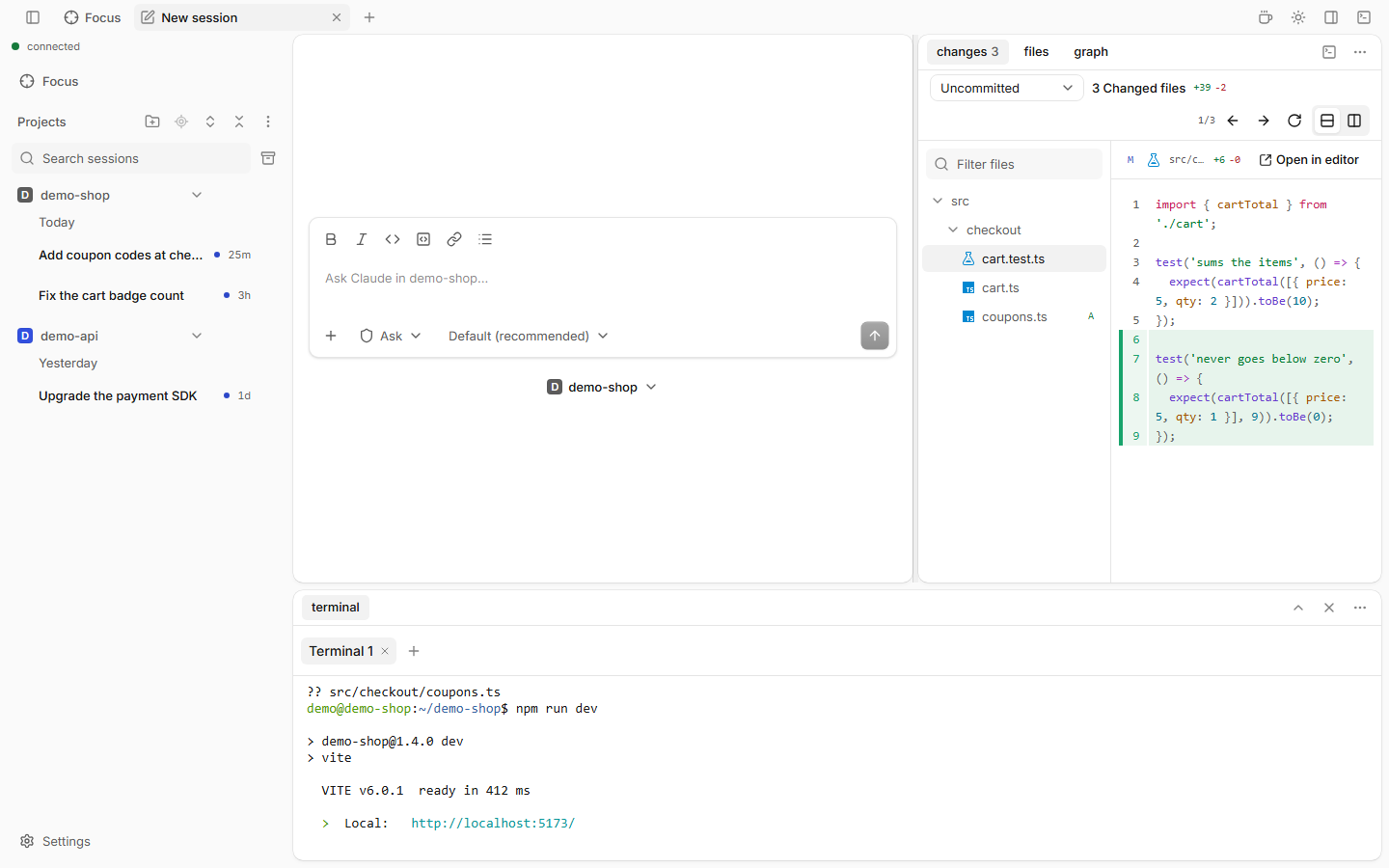
How to find a session
- Type in Search sessions at the top of the sidebar. It matches title, project and branch.
- Add
@project=my-appto search one project only. - To search inside messages, open the command palette (Ctrl+K) and type.
- Type
/resumein the prompt box to search the sessions of the current project.
Session menu
Hover a session row and click ⋯:
| Item | Does |
|---|---|
| Rename | Changes the title. |
| Archive / Unarchive | Hides the session from the list without deleting it. |
| Copy session ID | Copies the ID. |
| Close tab | Closes its tab, while one is open. |
| Delete… | Deletes the session and its history for good (asks first). |
The same menu opens with a right click. See Context menus.
Tabs
Right-click a tab for Close others, Pin tab, Reveal in sidebar and more: Context menus. To show two sessions at once, see Split view. To close many tabs by rule, see Clean up.
Each open session is a tab at the top. Tabs are grouped by project, like Chrome tab groups.
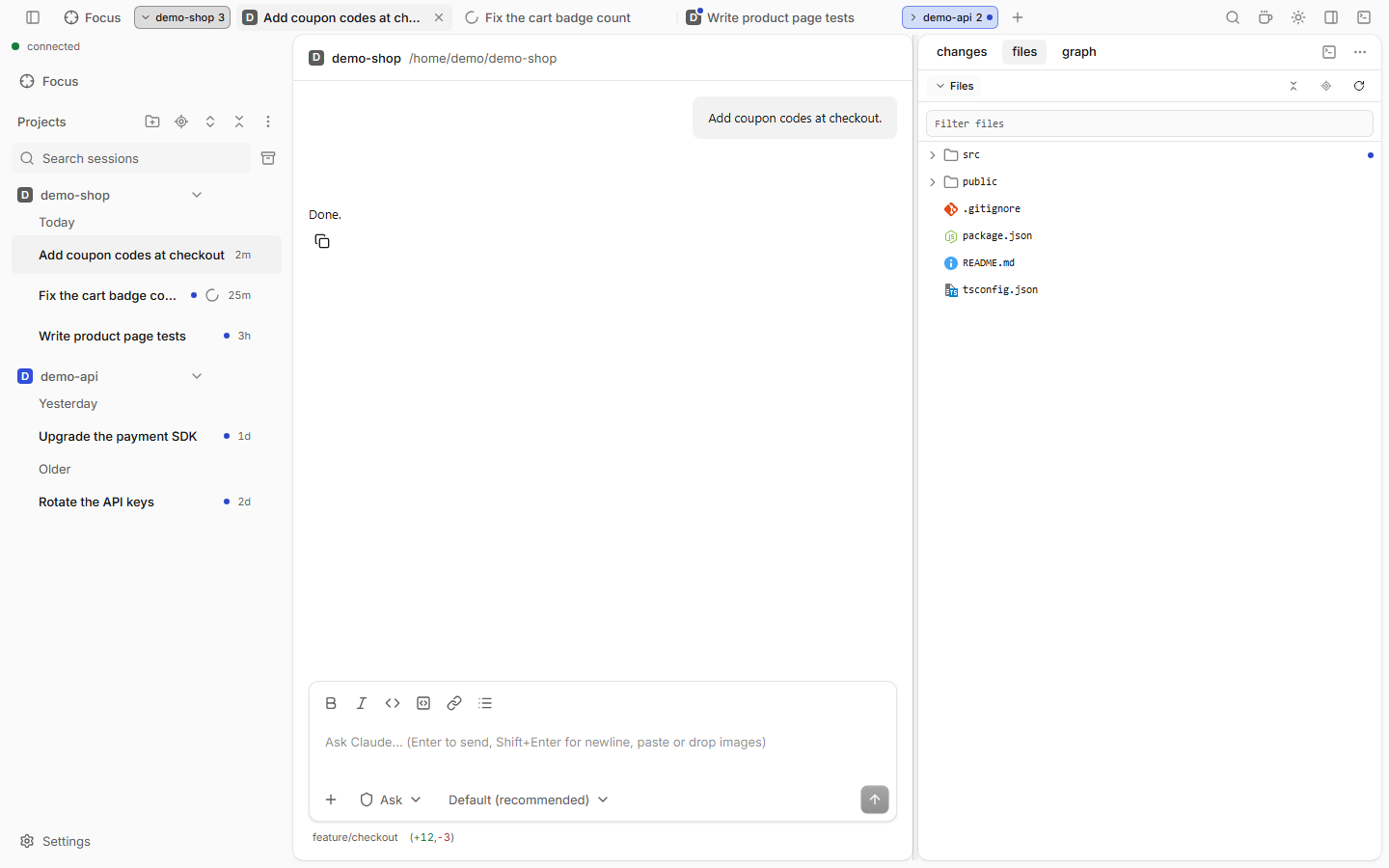
| To | Do |
|---|---|
| Switch tab | Click it, or Alt+1…8 (⌃ 1…8 on Mac). Alt+9 goes to the last tab. |
| Close a tab | Its ×, or Ctrl+Alt+W |
| Close a whole group | Middle-click the group chip, or right-click it › Close group |
| Reorder | Drag a tab or a group chip |
With Compact tabs on, each group shows only its chip: hover or click it to pick one of its tabs, and right-click it for the group actions (Context menus).
More tab keys (reopen a closed tab, close a group): Keyboard shortcuts.
On a phone, tap the tab switcher to see all tabs. Swipe a row left to close it. Swipe up or down on the switcher to go to the previous or next tab: the tab name follows your finger and settles on the next tab, or springs back.
Good to know
/clear(or/reset,/new) starts a fresh session in the same tab and keeps what you typed.- Idle close: a session that no tab shows closes its Claude process after 10 minutes idle. It stays in the list. The next prompt resumes it. Change the time with
CLAUDE_UI_IDLE_CLOSE_MINUTES. - Change how tabs group (by project, by worktree, or none) and turn on Compact tabs in Settings › Layout › Tabs.
- Sidebar grouping Worktree and Project (also in the sidebar options menu), and "Show only active sessions", are in Settings › Layout › Sidebar.