Panes & layout
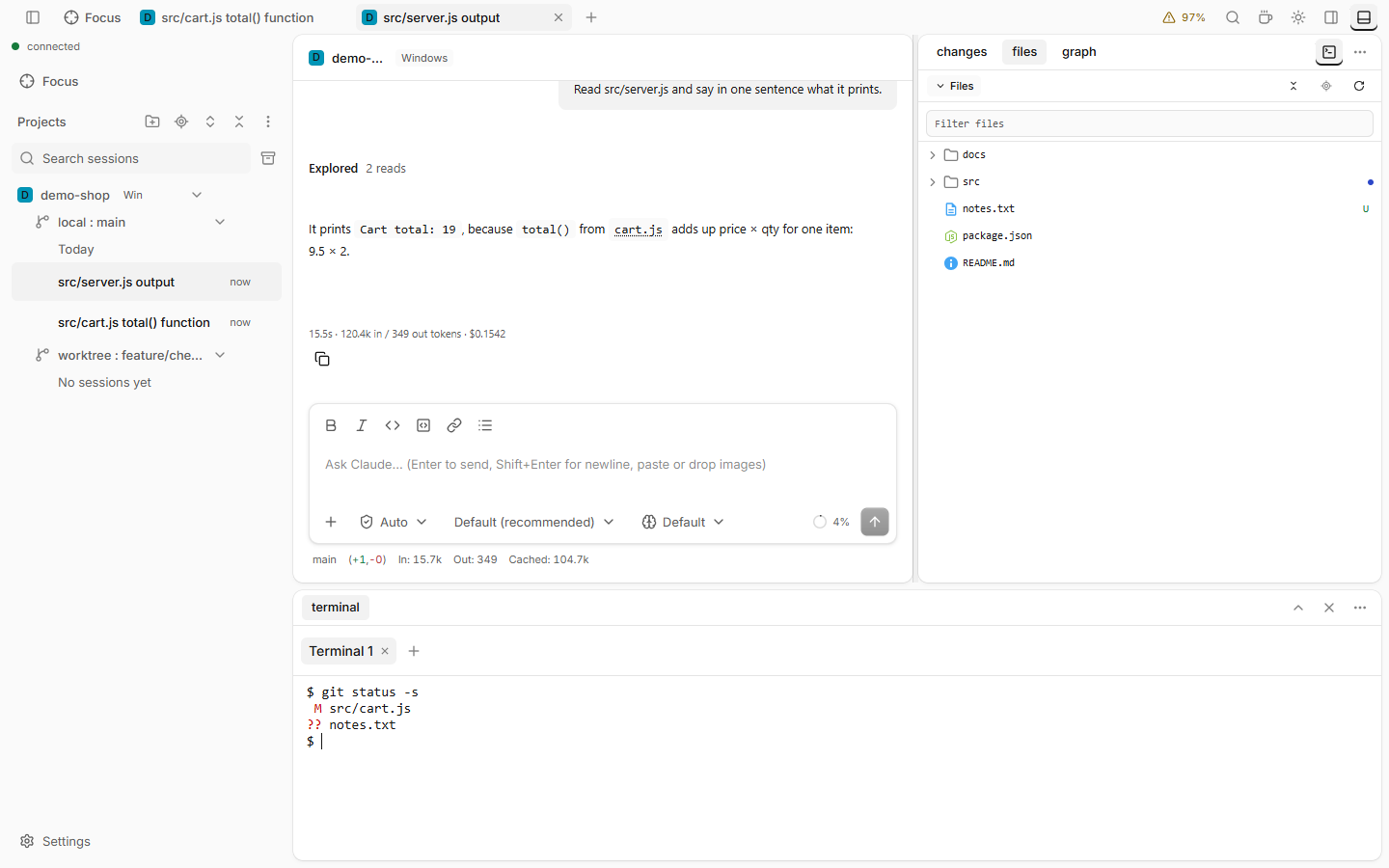
Changes, Files, Git graph, Terminal, Plan and Artifacts are panes. Each one is a tab of the side panel, of the bottom panel or (except Changes) of the main area, and you choose where it lives.
How to use
- Right-click a pane tab (Shift+F10 on the keyboard, long press on touch) and pick Move to bottom panel or Move to side panel.
- Or open the panel's ⋯ menu (Side panel actions or Bottom panel actions) and pick Move … to bottom panel or Move … to side panel.
- Or drag a pane tab onto another tab or onto a panel. A dashed Side panel or Bottom panel strip shows where an empty panel is. Esc cancels the drag.
- To dock the side panel on the other side, use Move side panel to left (or right) in its ⋯ menu.
- To undo all of it, pick Reset layout in a pane tab's menu, a panel's ⋯ menu or the command palette.
The main area
Plan, Files, Git graph and Terminal can also be tabs next to your sessions. Right-click the pane tab and pick Move to main area, or drag the tab onto the tab strip or the session area. The pane then opens as a tab in the project's group of the tab strip ("Plan · session", "Terminal · project"), and keeps showing that project or session while you work in another one. Move to side panel or Move to bottom panel brings it back, and the tab closes (a toast offers Undo). The tab's own menu has the same items. Git graph always takes the whole area.
Drag a pane tab onto the side panel or the bottom panel to move it there.
The panes
| Pane | Shows |
|---|---|
| Changes, Files, Git graph, Terminal | See their pages. |
| Plan | The newest plan of the session, with the same text as the plan card. It is listed only while the session has a plan. While a plan waits for your answer it says so, with Go to request. Open in tab on a plan card or on the plan approval shows the pane wherever it lives. |
| Artifacts | The artifacts the session published (Claude's Artifact tool). Pick one to preview it, or click Open in tab. Listed only while the session has published one. |
One file or one artifact as a tab
- Open in tab on a file (a tree row, a Files editor tab, the file dialog, or Alt+Enter in Open file) moves that file into its own tab next to its session. It is the same editor. Move to Files puts it back. A file is open in one place only.
- Open in tab on a published Artifact card shows the page in its own tab at full height. Move to Artifacts puts it back. The preview in the card stays.
- Put either one beside the session with Split right or Split down (see Split view).
A session in the side or bottom panel
Right-click a session tab and pick Move to side panel or Move to bottom panel (wide screens). That session, with its timeline, prompt box and requests, stays there while you work in other sessions, for example to watch a worker. It has the same features as a tab: file links, Quote, Open in tab, image attachments. Move to main area in the dock tab's menu brings it back. Opening it from the sidebar, Focus or a notification selects its dock tab. It is a normal tab again on a window narrower than 1024px.
The terminal
The terminal is in the bottom panel by default, under the session and the side panel. The bottom panel resizes (drag the handle above it), maximizes (Maximize panel / Restore panel) and hides (Hide bottom panel). Press Ctrl+` or use the terminal button in the titlebar to show or hide it.
To keep the terminal in the side panel or the main area, set Terminal position in Settings › Layout › Terminal, or move its tab.
Good to know
- A moved pane keeps its state: open files, running terminals, the loaded graph. Its tab keeps the keyboard focus. The terminal never takes the keyboard until you click into it.
- A panel with no pane is hidden. Git graph, Plan and Artifacts only show when there is something to show. Git graph needs a git folder.
- The layout is kept per browser. The side panel and the bottom panel reopen on the tab you selected last, also after a reload.
- Reset layout restores the default layout and forgets the remembered tabs. It does not change sizes.
- On a phone there is no docking: the pane switcher opens on the pane you used last.