
Clean up
Close or remove many tabs, worktrees and workers at once, with a safety check for each.
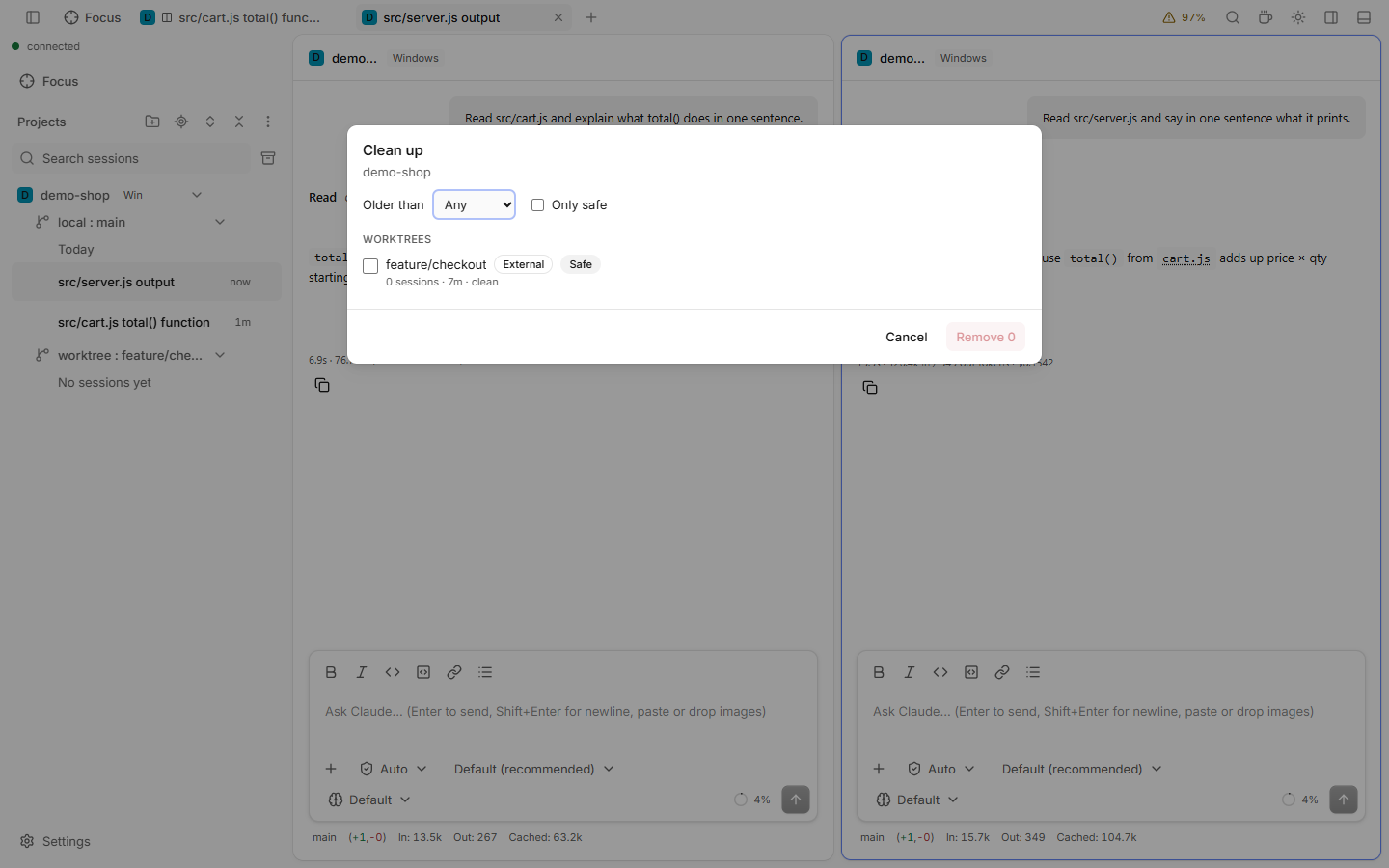
Clean up worktrees and workers
- Open the command palette and run Clean up worktrees and workers…. Or open a project's menu and pick Clean up…, or a coordinator's menu and pick Clean up workers… (see Context menus).
- Read the badge of each row: Safe, Has work (uncommitted files or unpushed commits, with counts) or Blocked (with the reason).
- Tick the rows to remove. Safe worktrees and closed workers are ticked for you. Use Older than and Only safe to narrow the list.
- Click Remove N. A summary lists what was removed and what was skipped, and why.
Clean up tabs
- Open the tab menu and pick Clean up tabs…, or run it from the palette.
- Pick a rule: idle tabs, finished tabs, tabs of archived or deleted sessions, worker tabs, or tabs not used for 1 hour, 1 day or 7 days. Each rule shows how many tabs it closes.
- A Closed N tabs toast appears. Click Undo to bring them back.
To close the idle tabs of one group, right-click its group chip and pick Clean up group (see Context menus). On a phone, long press the close button.
Good to know
- Active, pinned, running and unread tabs, and tabs with an unsent draft, are always kept. Closing a tab does not stop its session.
- Removing a worktree with work needs an extra tick: Discard uncommitted files and unpushed commits. A merged branch can be deleted with it (Also delete branch, off by default).
- The scan is fast, and it does not slow the status bar. A branch that was squash-merged counts as merged, so its worktree is Safe. The status of a worktree is cached for display; removing always checks again.
- Removing a worktree runs in the background: every queued row shows Removing….
- Any linked worktree inside your roots can be removed, also one made by hand or by another tool. A locked or symlinked one is Blocked.
- A worktree tagged External is not in
.claude/worktreesand is not ticked for you.