
Split view
Show two sessions next to each other, or one above the other, each with its own timeline, prompt box and scroll position. A session can also sit beside one of its panes: its plan, its project's terminal, a file or an artifact. It needs a window at least 1024px wide.
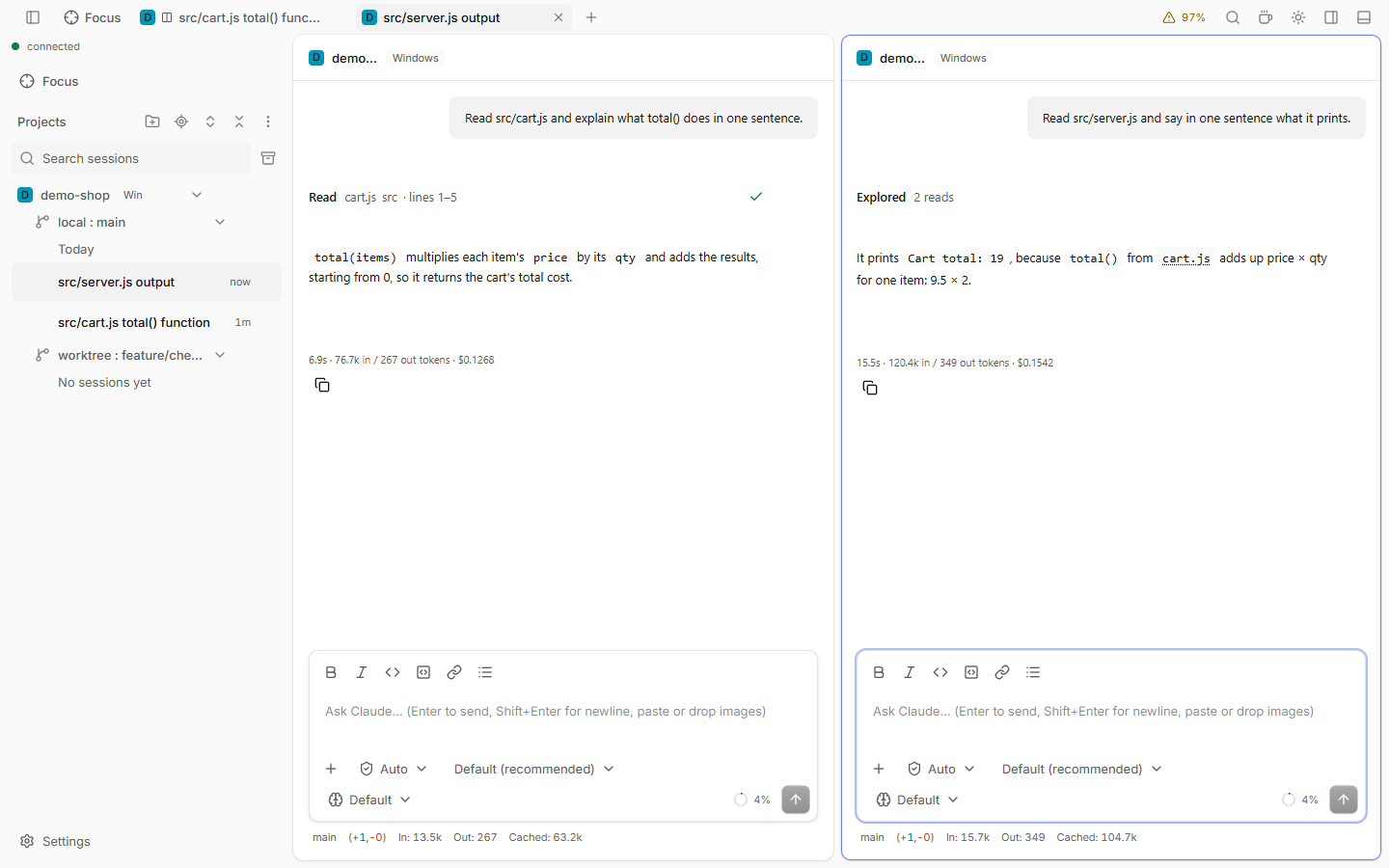
How to use
- Open at least two session tabs.
- Right-click a session tab (long press, or Shift+F10 on it) and pick Split right or Split down. That tab moves into the new split.
- Click or tab into a split to make it the active one. A thin ring marks it.
- Drag the bar between the splits to resize them, or focus it and press the arrow keys. Double click it to go back to 50/50.
- To end the split, run Join splits in the command palette. The active session stays.
You can also drag a tab onto the session area and drop it at an edge to split there. Split right, Split down and the drag work on Plan, Files, Terminal, file and artifact tabs too. A split always holds at least one session. Git graph always takes the whole area, and Changes stays in its panel.
Good to know
- The palette also has Split right, Split down, Focus next split and Focus previous split. Bind keys to them in Keyboard shortcuts.
- The active split is the current session: the side panel, the terminal, palette commands and Esc (stop) follow it.
- Both sessions on screen count as seen, so neither shows a notification card.
- The tab of the other split has a split icon. Closing it ends the split.
- When the window is too narrow for two splits, one shows at a time with a Close split button. The split comes back when there is room.
- After a split, the typing focus is in the new split: type at once, also in a terminal.
- The split is kept per browser and restored on reload while both tabs are open.