
Projects & worktrees
A project is a folder you work in. New sessions start in a project.
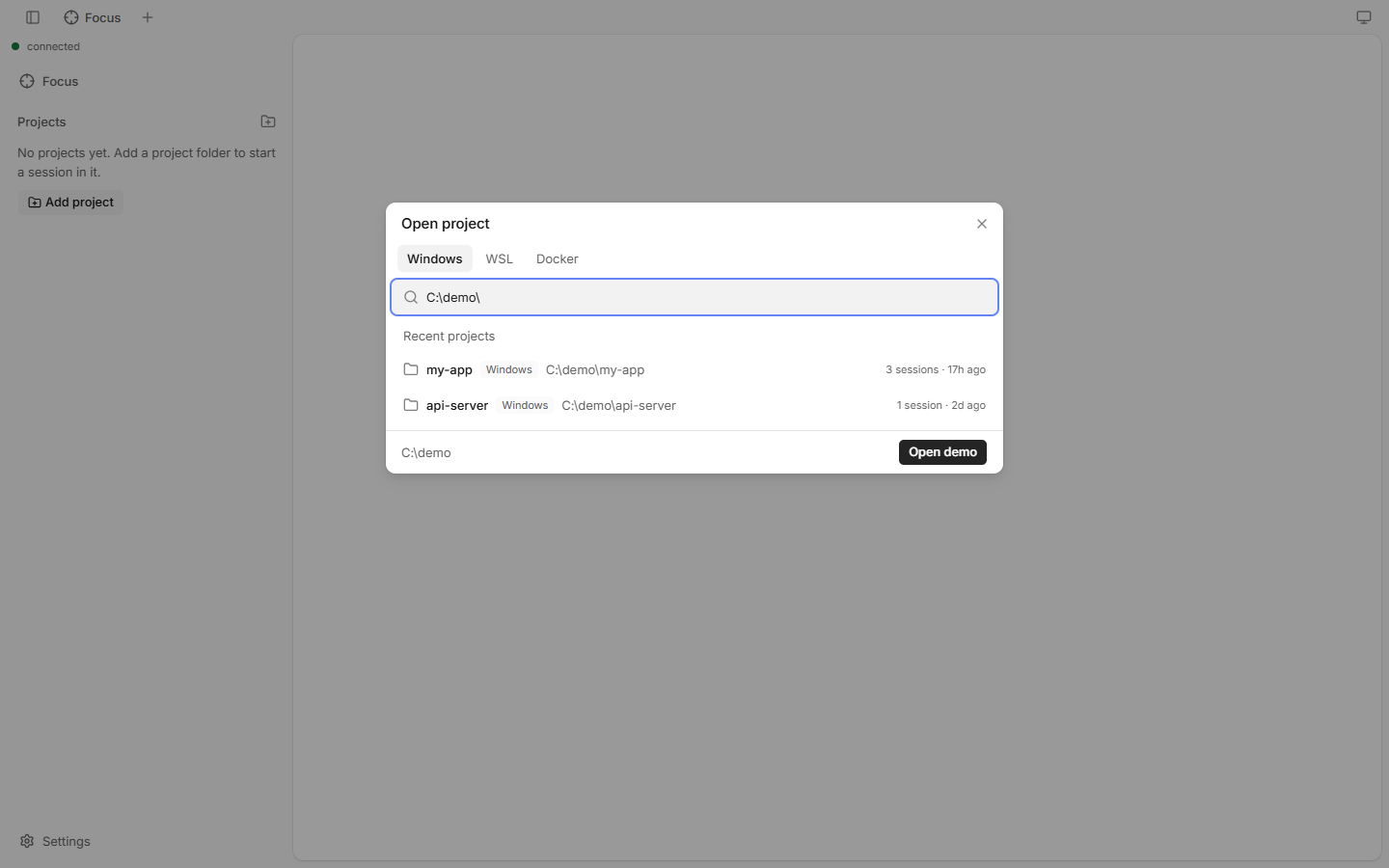
How to open a project
- Click Open project (the folder icon next to Projects in the sidebar).
- Pick a recent project, browse to a folder, or type a path.
- The project shows in the sidebar. Start a session in it.
How to remove a project
- Open the project's menu in the sidebar and choose Remove from list (files stay).
- This only hides it. Files and session history stay.
Custom names and icons
A project can have your own name and icon.
- Open the project's menu in the sidebar and choose Change name and icon….
- Type a name (up to 60 characters), and pick an emoji or an image. An image is cropped to a square: drag it to move it.
- Save. Reset removes both.
The name replaces the folder name everywhere the project is named: sidebar, tab group chip, command palette, Focus page and dialogs. The icon replaces the letter of the project avatar and shows on the tab group chip. The folder name still finds the project in the sidebar filter and still heads the folder browser of Open project. Worktree rows keep their branch or folder name.
A machine (this computer, a WSL distro, a container or an SSH host) can have a name and icon too: Settings › Sides, pencil button of its row. The name shows in the Side badge, in the tab place text and in the lists of Open project. They are saved in the daemon and apply to every browser.
Worktrees
A worktree is an extra git checkout of the same repository, on its own branch. Use one to let Claude work on a branch without touching your main checkout.
Create a worktree
- Hover the project row and click the branch-plus button Create worktree (or run "New worktree…" in the command palette, or pick Create worktree… in the project menu).
- Pick where its branch comes from:
- Ticket: pick a Jira ticket (your open tickets show first; type a key, words of the summary, or paste the ticket link or a pull request link whose branch names the ticket). The branch name comes from the ticket, e.g.
bugfix/PRJ-123-login-fails; you can edit it. If a branch with the key exists already, Check out it instead. Set up Jira in Settings › Jira. - Branch: check out an existing local or remote branch. A remote-only branch gets a local branch of the same name that tracks it. A branch that is checked out in another worktree cannot be picked. Paste a pull request link (GitHub, GitLab, Bitbucket Server) to list the branch it was opened from, or a ticket link or key to list the branches named after the ticket.
- Name: type any name.
Fix Login Übecomes the branchfix-login-u;feat/xstaysfeat/x.
- Ticket: pick a Jira ticket (your open tickets show first; type a key, words of the summary, or paste the ticket link or a pull request link whose branch names the ticket). The branch name comes from the ticket, e.g.
- For a new branch, Base picks the start point (default: the remote default branch, e.g.
origin/main). - The modal shows the branch and its folder (
.claude/worktrees/<branch with / replaced by ->). Click Create. A new session tab opens in the worktree.
A new worktree also gets the gitignored files that the .worktreeinclude file at the root of the main checkout lists (.gitignore syntax), for example .env. A file is copied only when a pattern matches it and git ignores it. Copying stops at 2 GiB or 50,000 files per worktree, with a warning in the daemon log. Links are never copied.
A long ticket summary is shortened, so a generated name is always valid. An error shows only for a name you typed or edited. A folder name is at most 64 characters, also when you check out an existing branch with the Branch tab.
Shift+click the button, or pick New worktree in the project menu, to create one at once with a generated name.
The Run session in chip of a new session calls the main checkout Primary worktree.
To remove many at once, see Clean up. To remove one, click its trash icon (on a phone: its menu › Delete worktree…). The dialog opens at once with Checking…. After you confirm, the row shows Removing… while the removal runs in the background.
The menu of a project row and of a worktree row has Copy path.
Projects header buttons
| Button | Does |
|---|---|
| Open project | Adds a project. |
| Select active session | Scrolls the sidebar to the session you are looking at. |
| Expand all / Collapse all | Opens or closes every project (desktop). |
Sidebar options (⋯) | Layout, show only active sessions, and more. |
Good to know
- You can only open folders inside the allowed roots (default: your home folder). See
--roots. - Folders that only have sessions from the
claudeCLI show as recent projects until you open them. - Worktrees under
.claude/worktrees/can be removed from here, and so can any linked worktree inside the roots (not a locked or symlinked one), also one made by hand. Before it removes one, it tells you how many uncommitted changes and commits you would lose. - Removing a worktree deletes the branch claude-code-ui created for it (from Ticket, Name, a generated name or a worker). A branch you checked out with Branch, or made yourself, stays; Clean up offers to delete it when it is merged.
- With WSL, Docker or an SSH host, Open project also lets you pick a side. See WSL, Docker & SSH.