
Files
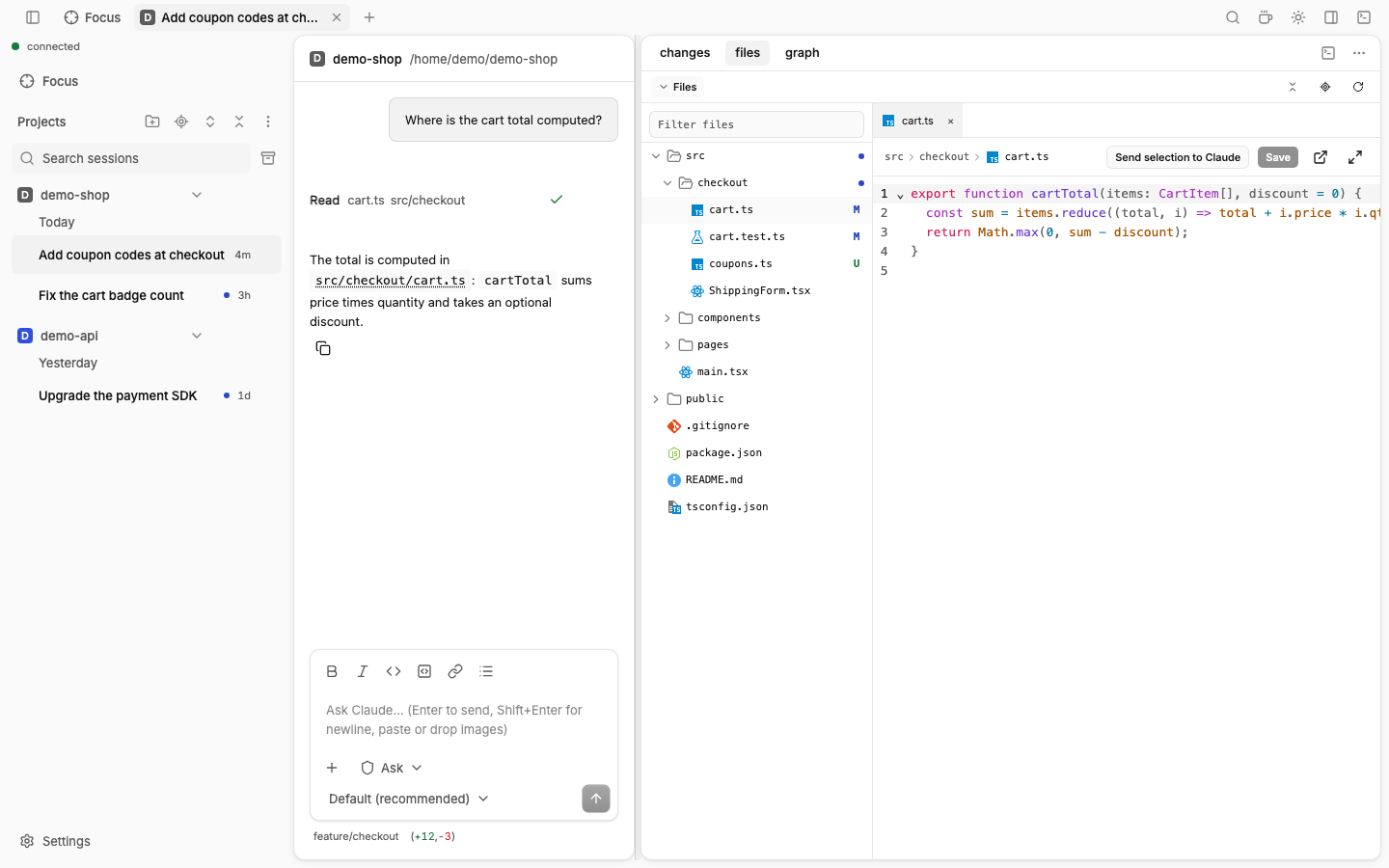
The Files pane: a file tree and a simple editor for the session's folder. It lives in the side panel by default; it can also be a tab in the main area (see Panes & layout).
How to use
- Open the side panel and pick files (or press Ctrl+Shift+E).
- Click a file in the tree to open it in an editor tab.
- Edit it and press Ctrl+S (⌘ S on Mac) to save.
- To find a file by name, press Ctrl+P (Open file).
File view
- The tree shows a file-type icon and a git status mark (modified, added, untracked…) for each file. A file inside a nested repository or a submodule gets the mark of its own repository. A repository folder shows a repository icon and a submodule an archive icon; neither gets a single
Ufrom the parent. Right-click one for Show changes or Show graph: they switch the repository selector of Changes and Git graph. - Open tabs and unsaved edits come back after a page reload.
- A single click opens a preview tab (its title is in italics); the next single click replaces it. Double click the tab or the tree row, or edit the file, to keep it open.
- A breadcrumb path and an unsaved marker (●) sit above the editor. Markdown files can show a rendered preview.
- Markdown preview shows tables at full height; the preview scrolls.
- Binary and very large files show a clear message instead of opening.
- Filter files and
@in the prompt box also find files inside nested repositories and submodules. - With no file open, the tree fills the tab. From 672px of panel width the tree sits beside the editor; below that it is a drawer (the Files button or Ctrl+\).
File dialog
Click Pop out in the Files tab to open the tree, tabs and editor in a large dialog. It is the same state: open tabs, unsaved edits, cursor and undo history carry over, and back (Open in editor).
A Read card in the timeline, a file path in Claude's answer (src/cart.js:12) and Open in file dialog in the tree menu open the file there, at its line. A bare file name in Claude's answer (cart.js) opens the matching file of the project. The match ignores case. When several files match, a file picker opens filtered by the name. With no match, a File not found message shows.
File tree menu
Right-click (long press, or Shift+F10) a file or folder:
| Item | Does |
|---|---|
| New file…, New folder… | Creates it in that folder. The same items are in the menu of empty tree space. |
| Rename (F2), Duplicate | Renames or copies the file. |
| Delete (Delete) | Deletes it after you confirm. |
| Copy path, Copy relative path | Copies the path. |
| Open in tab | Moves the file into its own tab next to its session (also middle click on the row). See Panes & layout. |
| Add to prompt | Inserts the file into the prompt box as an @mention. |
Find in files
Ctrl+Shift+F (⌘ Shift F on Mac, or Find in files in the command palette) searches the text of the project's files with git grep, so git must be installed. Text selected in the editor or a text field becomes the query.
- Results are grouped by file, with two lines of context and the hits marked. Enter or a click opens the match at its line.
- The regex button switches to a regular expression (Perl-compatible, as
git grep -P:\d,\wand\bwork; a git built without PCRE says so). Files to include takes patterns such as*.ts, *.tsx. - Ignored files are skipped in a git project; the eye button includes them. A folder that is not a git project searches everything, ignored files included, and the button hides them.
- ↑ and ↓ in the boxes recall earlier searches; in the result list (Tab) they move between matches.
- A search stops after 5 s, 200 files or 2000 matches, and says so. Binary files are skipped.
Keys
| Key | Where | Does |
|---|---|---|
| Ctrl+P | Anywhere | Open a file by name. Ctrl+Enter in the list inserts @path into the prompt instead. |
| Ctrl+Shift+F | Anywhere | Find in files |
| Ctrl+S | Editor | Save |
| Alt+K | Editor | Insert the file and the selected lines into the prompt box (⌥ K on Mac) |
| Ctrl+\ | Anywhere | Show or hide the file tree |
Good to know
- Images and videos open as a preview. SVG files can switch between preview and text (Show preview).
- If the file changed on disk while you edited it, you choose: reload it or overwrite it.
- The browser warns you before you leave the page with unsaved changes.
- Only files inside the allowed roots can be opened. See
--roots.